About
OffCode Automation Tool — a powerful Windows desktop automation application that automates repetitive tasks and data entry without coding. AI-powered features let you generate automation scripts from natural language (OpenAI, Claude, Gemini, Groq, Ollama) and create social media posts with AI. Think of it as a "robot" that can see your screen, find text or buttons, and perform actions like clicking, typing, and navigating – just like a human would.
The application combines OCR (reads text from your screen), UI Automation (finds buttons and controls via Windows accessibility), and mouse/keyboard simulation. When exact text isn't found, AI Semantic Search can interpret your intent and locate the right element. This powerful combination allows you to automate tasks that would otherwise require manual intervention.
Real-world Use Cases
Social media automation (posting, liking, commenting)
Web browsing (form filling, searches)
Document work (Excel, Word tasks)
Gaming (repetitive tasks, monitoring game events)
Data collection from multiple screens
Monitoring dynamic content in real-time
Features:
AI Script BuilderGenerate automation scripts from natural language using cloud LLMs
Choose provider: OpenAI, Claude, Gemini, Groq, or Ollama (local or cloud)
Describe your automation in plain English
AI outputs a ready-to-run action sequence
Insert generated steps directly into your script
AI Social MediaCreate social media posts with AI assistance
Generate captions and content ideas
Use your preferred LLM provider
Copy results to clipboard for pasting
Scanner Triggers
Create advanced automation triggers using the Visual Reader. Use `[WAIT FOR TEXT] "message"` to pause your script until specific text appears in the scanner area. Use `[WAIT GONE] "message"` to wait until text disappears. This enables conditional automation based on screen content changes.
Visual Markers
Place numbered green markers directly on your screen to mark important click locations. Markers display coordinates and labels, making it easy to return to exact positions. Use markers in your automation scripts for reliable clicking at fixed positions.
Text Detection
Find text on screen using OCR
OCR reads any visible text
UI Automation for buttons/controls
Hybrid mode combines both
Works with any application
Visual ReaderA real-time scanner overlay that follows your cursor or stays locked in position. Choose between circle or rectangle scanning area. Monitor specific screen regions continuously and collect text as it appears. Perfect for monitoring dynamic content, game timers, chat messages, or any changing text on screen.
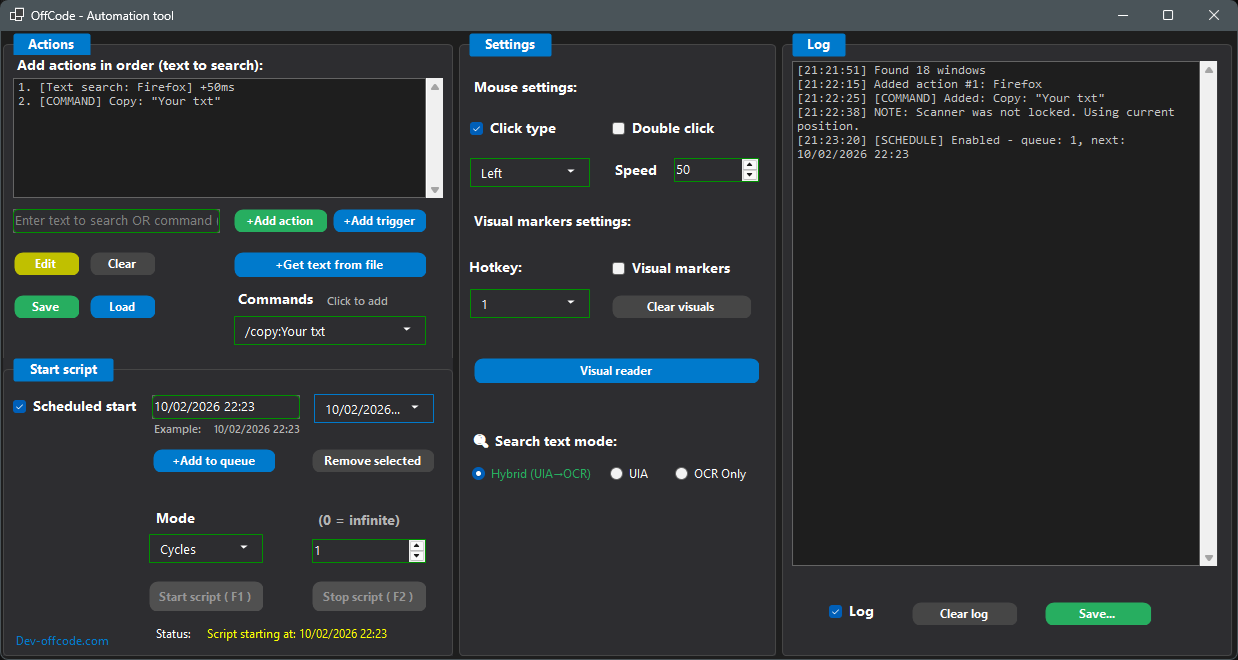
Scheduled StartRun your script at specific times automatically
Add multiple date/time entries to a queue
+Add to queue — add time from the text field
Remove selected — remove chosen time from the list
When a scheduled time is reached, script runs and that time is removed; next time runs automatically
Supports common date/time formats (e.g. system locale, dd.MM.yyyy HH:mm)
Multi-Region Visual ReaderRead text from multiple visual boxes simultaneously
Monitor multiple screen areas at once
Define separate scanning regions
Collect text from different locations
Advanced multi-area automation
Read / Click InsideReads and interacts only within visual box boundaries
Precise text reading within defined areas
Targeted clicking inside visual boxes
Contained automation actions
Accurate region-specific interactions
Hotkey ControlQuick access shortcuts
F1 — Start automation
F2 — Stop automation
Custom hotkey (1–9, F3–F12, Numpad) — Add visual marker
Numpad 1 — Manual scan (Visual Reader)
Numpad 2 — Lock scanner position
Numpad 3 — Unlock scanner
Numpad 4 — Add text collection region
Text list for automationUse a list of lines (e.g. search terms, messages, usernames) and feed one line per script step into the clipboard.
Open the text-list window via "+Get text from file" in the main form
Load lines from a .txt or .md file, or add lines manually
Optional: use random order instead of first-to-last
Add the "Get text from list" action to your script from that window — it inserts a step that runs during automation
When the script reaches that step, the next unused line is copied to the clipboard and marked as used (so it won’t be picked again)
Idea: each loop iteration can use different text — e.g. paste into a search box, type into a field, or fill a form with the next line from your list
Supported CommandsAvailable script commands (typed or chosen from the dropdown)
/copy:Your txt
/paste
/wait:500
/type:Your txt
/hotkey:ctrl+c
/key:Enter
/move:100,200
/click:500,300
/scroll:up,3
/scroll:down,3
/startprocess:notepad.exe
/stopprocess:notepad.exe
/openwebsite:google.com
Mouse & KeyboardAutomated interactions
Left/Right/Middle click
Double click support
Type text automatically
Hotkey combinations
Action SystemBuild automation sequences
Visual action builder
Loop support (0=infinite)
Save/Load/Edit scripts as JSON